In this post, I will explain you about PHP and MySQL. You can use PHP with MySQL database. You only need a simple script to connect PHP- MySQL.
1. mysql_connect() -- Open a connection to a MySQL Server
This function need several parameters. For example :
mysql_connect("localhost","root","12345")
notes : localhost --> the mysql server name
root --> the mysql username
12345 --> the mysql password
example : $link = mysql_connect("localhost", "mysql_user", "mysql_password")
or die("Could not connect");
2. mysql_select_db() --> Select a MySQL database
You need database name for this function
example : mysql_select_db("mysql")
notes : mysql is the database name is mysql database
3. mysql_query() --> Send a MySQL query
example : $result = mysql_query("SELECT * WHERE user='jhon'")
or die("Invalid query");
notes : SELECT * WHERE user='jhon' is query for mysql.
Sunday, July 22, 2007


Monday, May 21, 2007
Date Function on PHP
to display the time and date in PHP, we can use date function. This function have several parameter. example
<?
date('d-m-y h:i:s')
?>
this syntax will return 21-05-2007 15:25:32.
For other parameters, please try to change the example above.
<?
date('d-m-y h:i:s')
?>
this syntax will return 21-05-2007 15:25:32.
For other parameters, please try to change the example above.
| format character | Description | Example returned values |
|---|---|---|
| a | Lowercase Ante meridiem and Post meridiem | am or pm |
| A | Uppercase Ante meridiem and Post meridiem | AM or PM |
| B | Swatch Internet time | 000 through 999 |
| d | Day of the month, 2 digits with leading zeros | 01 to 31 |
| D | A textual representation of a day, three letters | Mon through Sun |
| F | A full textual representation of a month, such as January or March | January through December |
| g | 12-hour format of an hour without leading zeros | 1 through 12 |
| G | 24-hour format of an hour without leading zeros | 0 through 23 |
| h | 12-hour format of an hour with leading zeros | 01 through 12 |
| H | 24-hour format of an hour with leading zeros | 00 through 23 |
| i | Minutes with leading zeros | 00 to 59 |
| I (capital i) | Whether or not the date is in daylights savings time | 1 if Daylight Savings Time, 0 otherwise. |
| j | Day of the month without leading zeros | 1 to 31 |
| l (lowercase 'L') | A full textual representation of the day of the week | Sunday through Saturday |
| L | Whether it's a leap year | 1 if it is a leap year, 0 otherwise. |
| m | Numeric representation of a month, with leading zeros | 01 through 12 |
| M | A short textual representation of a month, three letters | Jan through Dec |
| n | Numeric representation of a month, without leading zeros | 1 through 12 |
| O | Difference to Greenwich time (GMT) in hours | Example: +0200 |
| r | RFC 822 formatted date | Example: Thu, 21 Dec 2000 16:01:07 +0200 |
| s | Seconds, with leading zeros | 00 through 59 |
| S | English ordinal suffix for the day of the month, 2 characters | st, nd, rd or th. Works well with j |
| t | Number of days in the given month | 28 through 31 |
| T | Timezone setting of this machine | Examples: EST, MDT ... |
| U | Seconds since the Unix Epoch (January 1 1970 00:00:00 GMT) | See also time() |
| w | Numeric representation of the day of the week | 0 (for Sunday) through 6 (for Saturday) |
| W | ISO-8601 week number of year, weeks starting on Monday (added in PHP 4.1.0) | Example: 42 (the 42nd week in the year) |
| Y | A full numeric representation of a year, 4 digits | Examples: 1999 or 2003 |
| y | A two digit representation of a year | Examples: 99 or 03 |
| z | The day of the year | 0 through 366 |
| Z | Timezone offset in seconds. The offset for timezones west of UTC is always negative, and for those east of UTC is always positive. | -43200 through 43200 |
Wednesday, April 25, 2007
How to Create button in photoshop
1. Open your photoshop program
2. Make new file with size 100 pixels x 20 pixels and transparent background
3. Click Rectangle Tool and select the style and colour do you want.
4. Fill the layer with rectangle tool
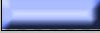
5. Select Type Tool and type the text in the button
6. Move the text to center. Select Type Tool. Select > All. Then click Align Vertical Center and Align Horizontal Center
7. Save your image. File > Save
8. Save for web. File > Save For Web
2. Make new file with size 100 pixels x 20 pixels and transparent background
3. Click Rectangle Tool and select the style and colour do you want.

4. Fill the layer with rectangle tool

5. Select Type Tool and type the text in the button
6. Move the text to center. Select Type Tool. Select > All. Then click Align Vertical Center and Align Horizontal Center

7. Save your image. File > Save
8. Save for web. File > Save For Web
Friday, April 20, 2007
This is my another blog
This is my another blog. I just try to write my blog in English. But my English is not very good.
My primary blog is http://away.blogsome.com.
My primary blog is http://away.blogsome.com.
Subscribe to:
Posts (Atom)